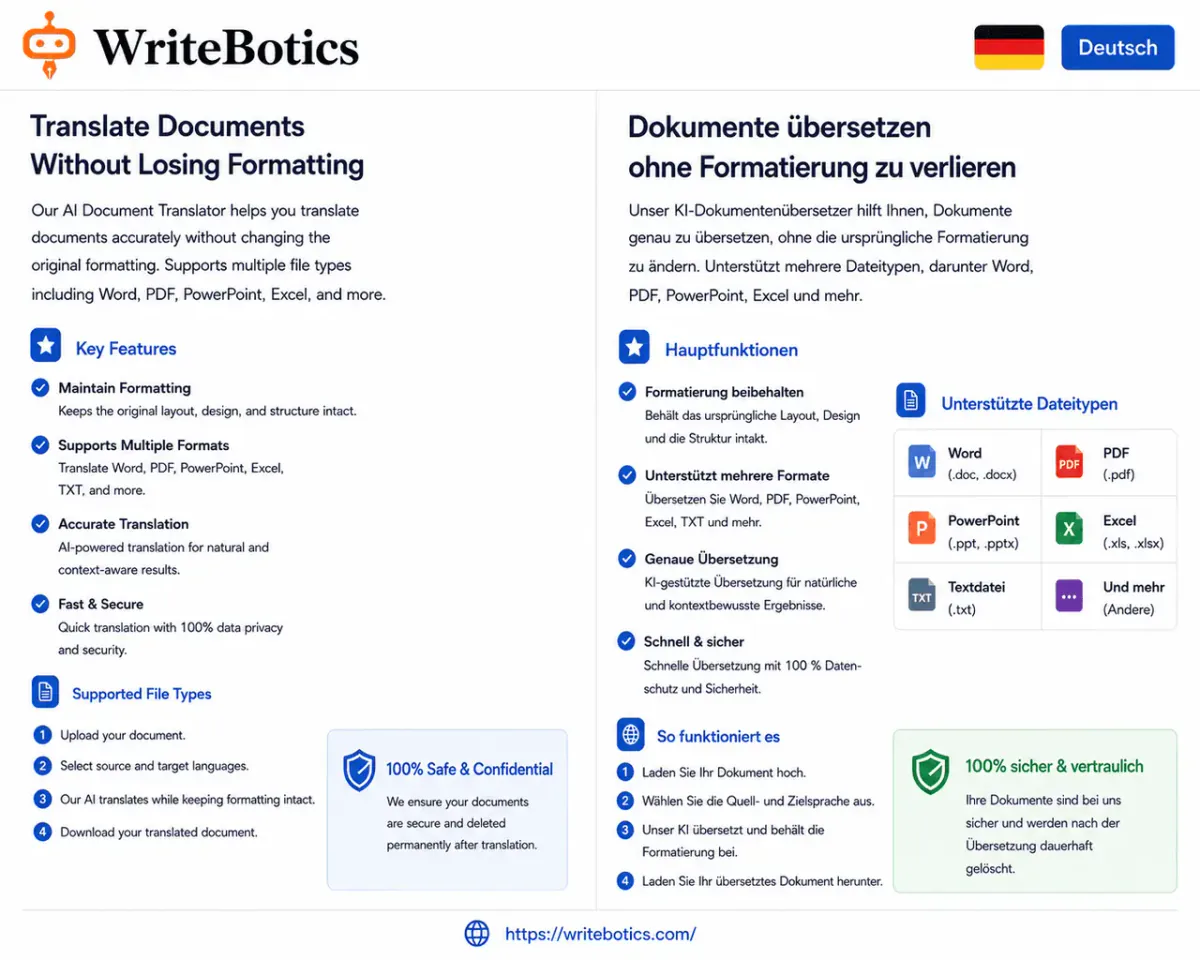
You paste a report into a translation tool, copy the result back, and suddenly your headings are gone, the bullet points have collapsed into one paragraph, and that neat table looks like scrambled text. If you've ever tried to translate a document without losing formatting, you already know the frustration.
The good news: formatting loss isn't random. It happens for a few specific, predictable reasons — and once you understand them, you can avoid almost all of it. This guide walks through why it happens and a practical, step-by-step method for keeping your layout intact while translating text into another language.
Why Formatting Breaks During Translation
Most formatting damage comes down to one of these causes:
Translation tools work with plain text, not layout. Machine translation engines read the words in a sentence, not the styling around them. When you copy a paragraph out of a Word document or PDF, you're usually copying the raw text — bold, italics, indentation, and spacing get stripped out before translation even starts.
Sentence length changes between languages. German and Finnish translations are often longer than the English original. Chinese and Japanese are usually shorter. A table cell or text box sized for English text can overflow or leave awkward empty space once translated.
Right-to-left (RTL) languages flip the layout. Arabic, Hebrew, Urdu, and Persian read right to left, which affects not just the text direction but how tables, bullet points, and alignment should be structured.
Copy-paste breaks structural elements. Bullet lists, numbered steps, and headings depend on formatting tags behind the scenes. When you copy text into a basic text box for translation, those tags don't come along for the ride.
Knowing this, the fix isn't a single trick — it's a workflow that keeps structure and translation separate until the very end.
Step-by-Step: Translating a Document Without Losing Formatting
1. Keep the original file open as your template
Don't translate directly inside your only copy. Duplicate the file first, and keep the original open in a second window. You'll use it as a visual reference for where each translated chunk belongs.
2. Break the document into structural pieces
Rather than pasting an entire page at once, translate section by section: one heading, one paragraph, one table row, one bullet at a time. This keeps translations short enough to check for accuracy, and it makes it far easier to slot the result back into the right spot without disturbing anything around it.
3. Translate the text using a dedicated tool
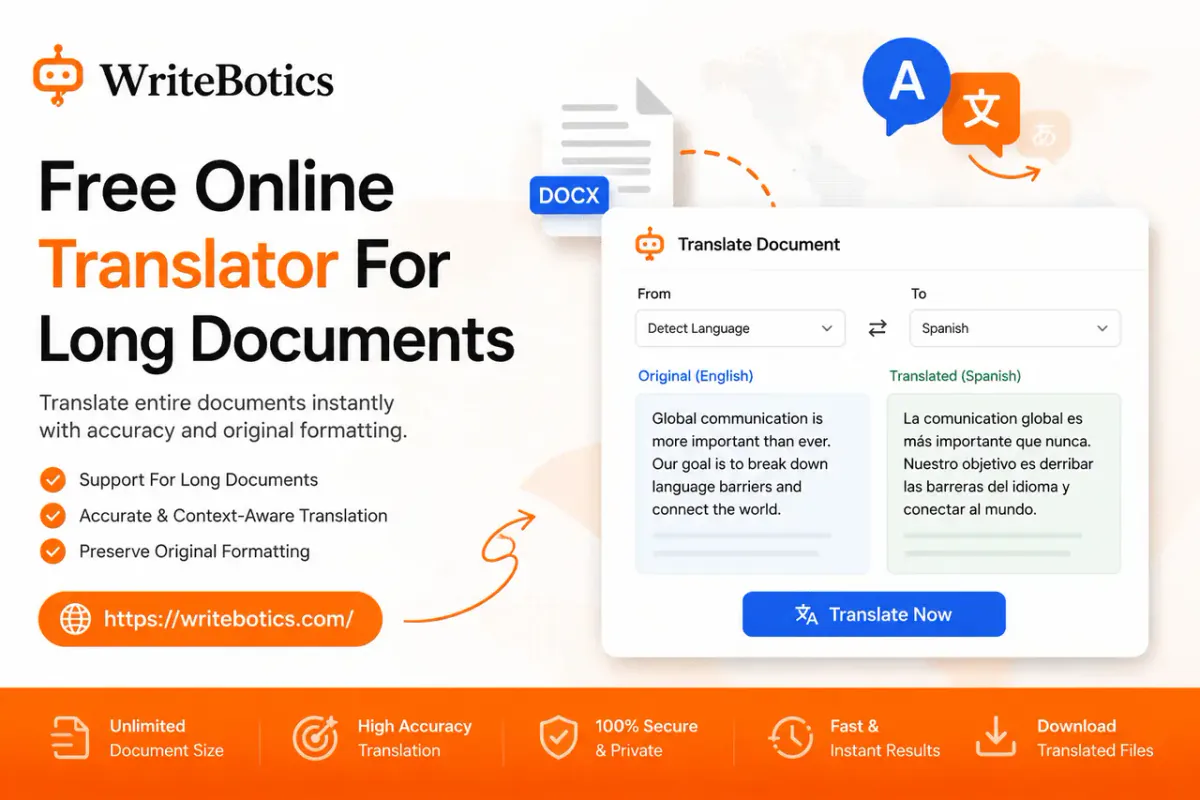
This is where a focused translator is more reliable than typing the sentence into a general chat window. WriteBotics' Translator supports 30 languages and lets you choose a tone — Standard, Formal, Casual, or Technical — so a legal contract and a casual blog post don't come out sounding the same. RTL languages like Arabic, Hebrew, Urdu, and Persian are also displayed correctly right to left automatically, which saves you from manually fixing text direction later.
Translate one chunk, copy the result, and move to the next. Because you're working section by section, you're never trying to untangle a huge block of translated text with no idea which sentence belongs where.
4. Rebuild formatting manually in the original layout
Paste each translated chunk into the same position in your document keeping the original font, spacing, and styling. This is the step people try to skip, but it's the one that actually prevents formatting loss — automated "one-click" translation of a whole file tends to guess at structure, and guesses are exactly what breaks tables and bullet lists.
For headings, re-apply the heading style after pasting (paste as plain text first, then format). For tables, translate one cell at a time so column widths and row breaks stay put. For bullet or numbered lists, translate each item individually and paste it into its existing list marker rather than retyping the whole list.
5. Adjust for text length changes
Once everything is pasted back in, scan for spots where the translated text is noticeably longer or shorter than the original — this is common when translating into German, Finnish, or Russian, or condensing into Chinese or Japanese. Resize text boxes, widen table columns, or reduce font size slightly if a heading no longer fits.
6. Polish the translated text before finalizing
Machine translation is accurate but occasionally stiff, especially with idioms or industry-specific phrasing. Before you finalize the document, run the translated sections through the Content Rewriter to smooth out awkward phrasing while keeping the original meaning intact. This is especially useful for client-facing documents, marketing material, or anything where tone matters as much as accuracy.
Common Formatting Problems and How to Fix Them
Tables turn into a wall of text. Translate and paste one cell at a time instead of the whole table. If you must translate a table in bulk, use a separator (like a pipe |) between cells so you can split the translated text back into the right columns afterward.
Bullet points merge into a single paragraph. This usually happens because the line breaks were lost during copy-paste. Translate each bullet as a separate, short chunk and paste it directly into the existing bullet, rather than translating the whole list as one block.
Headings lose their style. Paste translated headings as plain text, then reapply the heading style (Heading 1, Heading 2, etc.) from your document's style menu instead of trying to copy the formatting along with the text.
RTL text displays in the wrong direction. If you're translating into Arabic, Hebrew, Urdu, or Persian, make sure your document software is set to right-to-left text direction for that section before pasting, so alignment and punctuation display correctly.
Images and captions get separated from their text. Translate captions independently and paste them back next to their original image rather than translating a page that mixes image placeholders with text.
Tips by File Type
- Word documents (.docx): Use the "Paste as plain text" option, then reapply formatting styles from the ribbon rather than trying to preserve pasted formatting, which often carries over hidden source styling that conflicts with your template.
- PDFs: If the PDF is text-based, extract the text section by section rather than translating the whole file at once — PDFs are especially prone to layout shifts because text boxes are often fixed in size.
- PowerPoint slides: Translate one text box at a time and check that translated text still fits within the slide margins, since translated phrases are often longer than the original.
- Google Docs: Work in "Suggesting" mode so you can compare the original and translated version side by side before accepting changes across the whole document.
A Quick Workflow Recap
- Duplicate your file and keep the original as reference.
- Break the content into small, structural chunks.
- Translate each chunk with the Translator, choosing the tone that fits your document.
- Paste translations back into their original position and reapply styling.
- Adjust spacing or sizing where translated text runs longer or shorter.
- Smooth out phrasing with the Content Rewriter before finalizing.
Frequently Asked Questions
Can I translate a document without losing formatting for free?
Yes. You don't need paid software to keep your layout intact — you just need to translate in small chunks and rebuild the formatting manually rather than relying on a single automated pass. Free tools like WriteBotics' Translator handle the translation step; you handle the reassembly.
Why does my table or bullet list break when I translate it?
Copy-pasting a full table or list into a translator usually strips the underlying structure (rows, columns, list markers), so the translated text comes back as one unbroken block. Translating one cell or bullet at a time and pasting it back into the existing structure avoids this.
Which file types are hardest to translate without losing formatting?
PDFs and PowerPoint slides tend to cause the most issues because text sits inside fixed-size boxes. Word documents and Google Docs are easier since text reflows naturally as you edit.
How do I handle right-to-left languages like Arabic or Urdu?
Set the relevant section of your document to right-to-left text direction before pasting the translation in, so alignment and punctuation display correctly. WriteBotics' Translator displays RTL languages correctly by default, which helps you catch direction issues early.
Why is my translated text longer than the original, and how do I fix it?
Some languages (German, Finnish, Russian) tend to run longer than English, while others (Chinese, Japanese) run shorter. After pasting translated text back in, check headings, table cells, and text boxes for overflow, and resize or adjust font size as needed.
Should I edit the translation after it's done?
Yes, especially for anything client-facing. Machine translation is accurate but can sound stiff. Running translated sections through a tool like the Content Rewriter helps smooth out phrasing without changing the meaning.
Is there a way to translate an entire document in one click without formatting issues?
Not reliably. One-click, whole-file translation tools have to guess at structure, which is exactly what causes tables, headings, and lists to break. Translating section by section takes a bit more time but gives you full control over the final layout.
Final Thoughts
Formatting loss during translation almost always comes down to translating too much at once and trusting copy-paste to carry structure along with it. Working section by section — translating, pasting, and reformatting in small pieces — takes a little longer than pasting an entire document in one go, but it's the difference between a document that looks professional in its new language and one that needs a full redo.
If you're translating content regularly, it's worth bookmarking a couple of related guides: AI Writing Assistant: Write Faster and Smarter Today covers how to speed up your overall writing workflow, and Best Writing Tools Online to Boost Your Creativity rounds up other free tools worth having on hand. Ready to try it yourself? Head to WriteBotics and open the Translator tool — no signup required, and it's free to use.