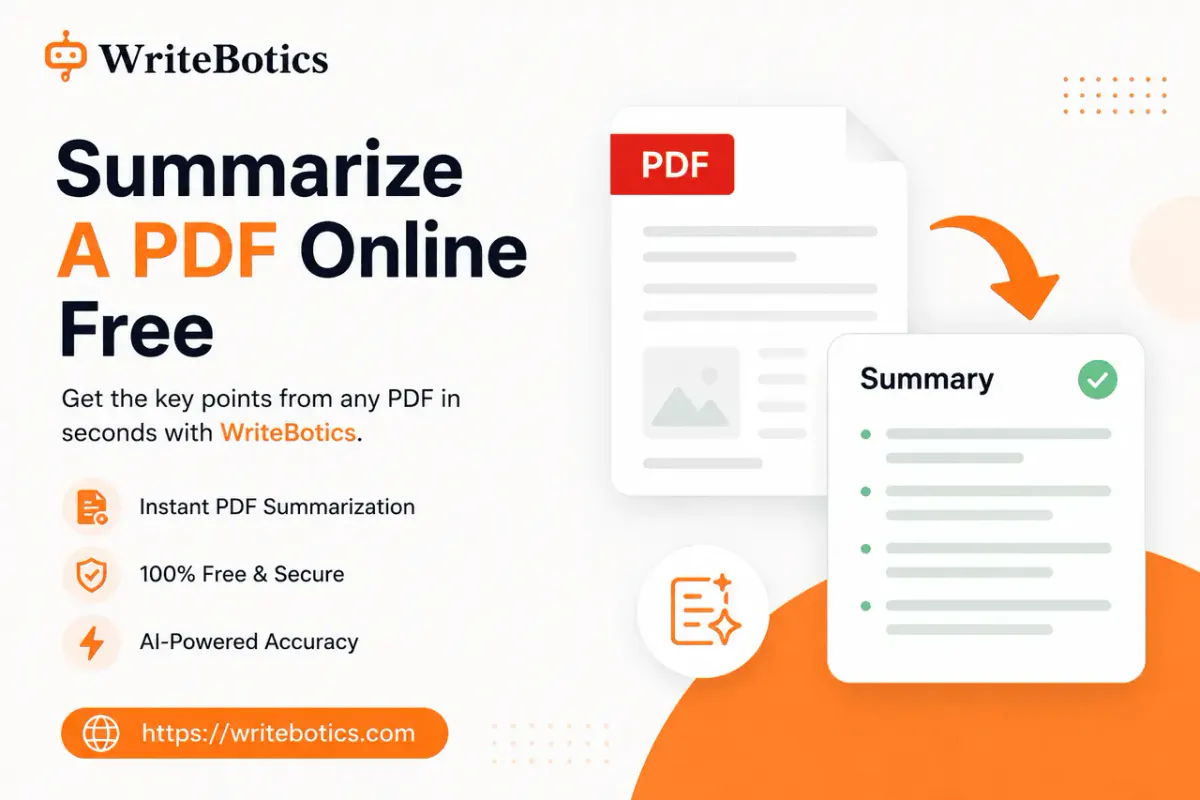
PDFs are everywhere — research papers, reports, contracts, course readings — and most of them are longer than anyone actually wants to read in full. If you just need the key points fast, without creating an account or installing software, a free PDF summarizer with no login is exactly what you're looking for. This guide walks through how to summarize a PDF online for free, what actually works well, and what to watch out for before you rely on a summary for something important.
What "Summarize a PDF Online" Actually Means
Most free online summarizers work by processing text, not the PDF file format itself. That distinction matters more than people expect. A PDF is really just a container — it might hold clean, selectable text, or it might be a scanned image with no selectable text at all. How you summarize it depends on which kind you're dealing with.
Text-based PDFs (the kind you can highlight and copy from) are the easiest case. You can select the text, copy it, and paste it directly into a free summarizer to get a condensed version in seconds.
Scanned or image-based PDFs (common with older documents or printed forms that were scanned) don't have selectable text at all. These need OCR (optical character recognition) first to convert the image into actual text before any summarizer can process it.
Knowing which type you have up front saves a lot of frustration — pasting a wall of gibberish into a summarizer, or wondering why "select all" isn't working, usually means you're dealing with a scanned document rather than a text-based one.
How to Summarize a Text-Based PDF for Free (No Login)
If your PDF has selectable text, the fastest no-login route looks like this:
1. Open the PDF in your browser or PDF reader.
2. Select the text you want summarized. You can select a specific section or the whole document, depending on what you need.
3. Copy it (Ctrl+C or Cmd+C).
4. Paste it into a free text summarizer, like WriteBotics' Text Summarizer. No account, no upload wizard — just paste and get a condensed version back.
5. Adjust the length if needed. A good summarizer lets you choose between a short overview and a more detailed bullet-point version, depending on whether you need a quick gut-check or something closer to study notes.
6. Compare the summary against key sections of the original. For anything you're going to rely on, cite, or share with someone else, a quick check against the source confirms nothing important got dropped.
This approach works for most everyday PDFs — articles saved as PDF, reports, essays, and course readings that were originally created as digital documents rather than scanned.
What to Do With a Scanned PDF
If your document doesn't allow text selection (try Ctrl+A inside the PDF — if nothing highlights, it's likely scanned), you'll need an OCR step before summarizing:
- Use an OCR tool to convert the scanned pages into selectable text. Many free PDF readers and online OCR tools can do this without requiring an account, though quality varies depending on scan clarity.
- Once you have machine-readable text, copy it the same way as a text-based PDF.
- Paste that extracted text into a free summarizer to get your condensed version.
It's worth noting that OCR accuracy depends heavily on scan quality — a blurry or low-resolution scan can introduce errors that carry through into your summary, so it's especially important to check OCR'd text against the original before trusting the summary fully.
What Makes a Free Summarizer Actually Good
Plenty of tools claim to be "free" and "instant," but the useful ones share a few traits:
No hidden signup requirement. If the tool asks for an email or account after your first attempt, it's not really a no-login tool.
Meaning preservation. A good summary keeps the original claims, numbers, and names accurate — it condenses by cutting repetition and lower-priority detail, not by rephrasing or guessing at the core points.
Adjustable length and format. The ability to choose paragraph vs. bullet-point style, and shorter vs. longer summaries, matters depending on whether you need a 10-second gut check or something closer to full notes.
A side-by-side view. Being able to see your original text and the summary together makes it much easier to spot-check for accuracy before you rely on it.
Reasonable, clearly stated limits. Free tools will have some length cap per session — that's normal. What matters is that the limit is visible up front, not a surprise halfway through pasting a long document.
A Few Practical Tips
Paste clean text. Stripping out page numbers, headers, footnotes, and other formatting clutter before pasting gives the summarizer cleaner material to work with, which usually produces a more accurate result.
Summarize in sections for very long documents. A 40-page report often summarizes more accurately in a few chunks than as one giant paste — it's easier to verify accuracy per section, and you avoid hitting a tool's length limit.
Pick the right length for the task. A one-line summary is enough for deciding whether a document is worth reading fully. A longer bullet list is better before a meeting, discussion, or exam where the details actually matter.
Always verify anything you'll cite or rely on. A summarizer condenses; it doesn't fact-check. If a number, name, or specific claim matters, confirm it against the original PDF before using it elsewhere.
Related Tools Worth Knowing About
If you're regularly working with documents you didn't write yourself — research, reports, other people's drafts — a couple of other free tools are worth having alongside a summarizer:
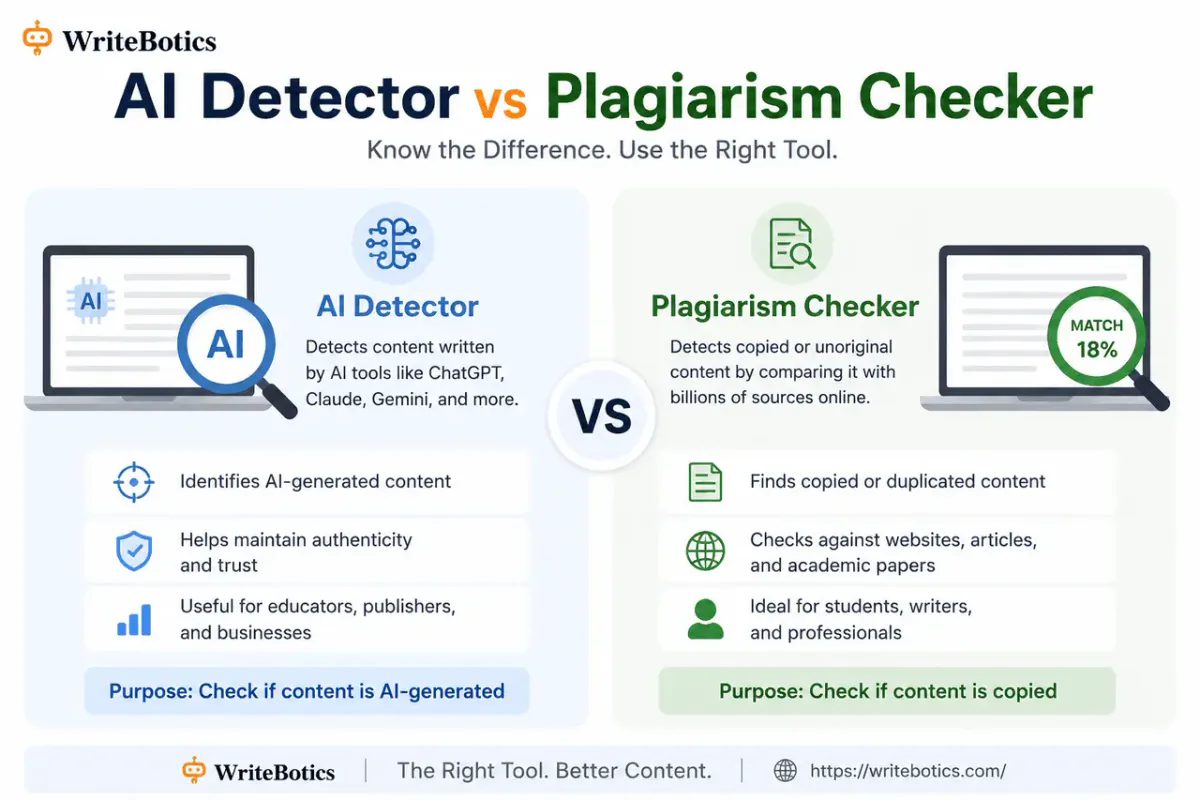
- A Plagiarism Checker is useful if you're pulling ideas from summarized sources into your own writing and want to confirm your final draft doesn't accidentally mirror the original text too closely.
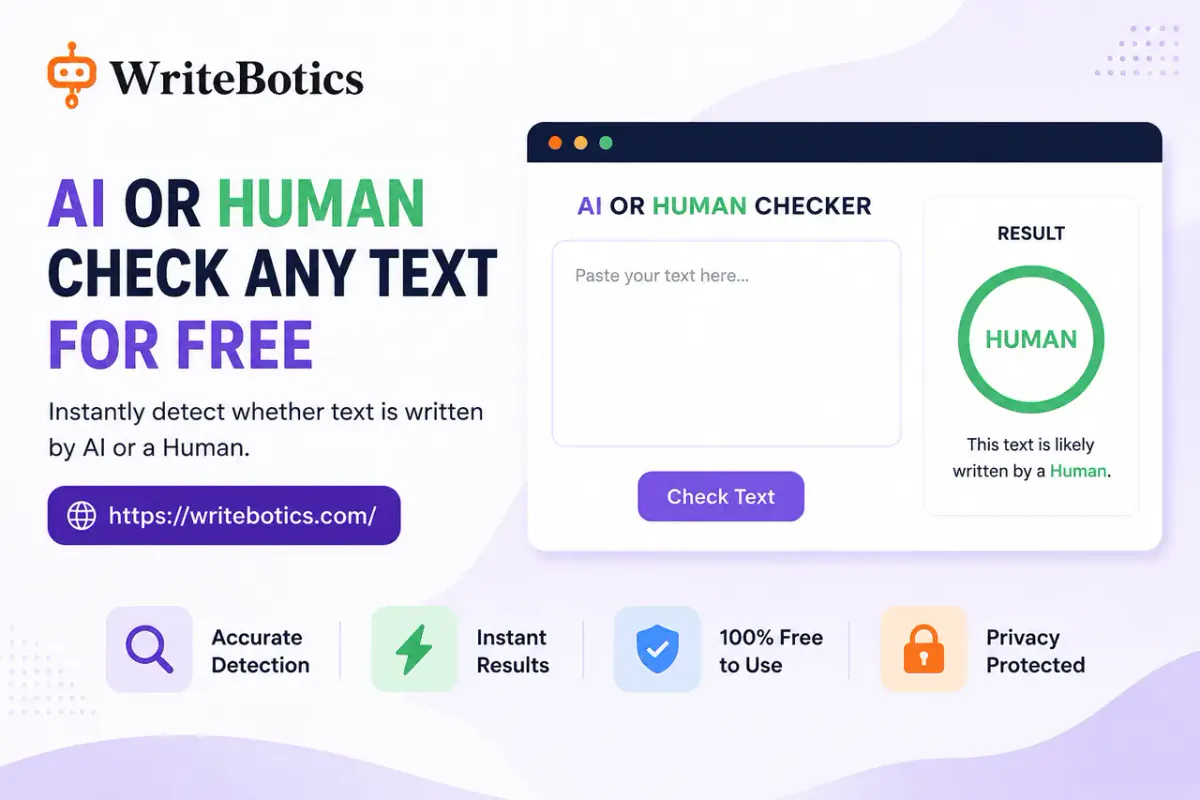
- An AI Content Detector can help if you're reviewing a document someone else wrote and want a pattern-based estimate of whether sections read as AI-generated — useful context, though not proof either way.
Frequently Asked Questions
Can I upload a PDF directly, or do I need to copy the text out first?
Most free, no-login summarizers — including WriteBotics' Text Summarizer — work by processing pasted text rather than PDF files directly. Selecting and copying the text from your PDF, then pasting it in, is the fastest reliable route.
Why can't I select any text in my PDF?
That usually means it's a scanned or image-based PDF rather than a text-based one. You'll need an OCR tool to convert it into selectable text before it can be summarized.
Is it safe to paste a confidential PDF's content into a free online tool?
Avoid it. As a general rule, don't paste private, confidential, or sensitive content into any online tool, and check a tool's privacy policy if you're unsure how submitted text is handled.
Will a summarizer miss important details?
A good summarizer aims to keep the most important points and cut repetition, but no automated tool is perfect. For anything you'll rely on or cite, check the summary against the original source.
Do I need an account to use WriteBotics' Text Summarizer?
No. You can open the Text Summarizer directly, paste your text, and get a summary — no signup required.
What's the best summary length for studying vs. skimming?
A short, one-line or single-paragraph summary is good for deciding whether something's worth reading in full. A longer, bullet-point summary works better for studying or preparing for a meeting where specific details matter.
Try It With Your Next PDF
Next time you've got a long PDF and limited time, copy the text you need, paste it into WriteBotics' Text Summarizer, and get a condensed version back in seconds — no account required. From there, explore the rest of the free writing tools if you also need to check plagiarism, grammar, or AI-writing patterns in the same document.
For more on working through long content efficiently, see AI Summary Generator: Summarize Long Text Fast and AI Writing Assistant: Write Faster and Smarter Today.