Yes, Google Docs checks grammar for free, and you don't need to install anything to use it. It's already sitting in your Tools menu right now, quietly underlining things in red and blue as you type. Most people either never notice it or assume it's too basic to bother with. It's not perfect, but it's a real starting point, and it costs nothing. Here's how to actually use it, what it won't catch, and what to do about the gaps.
Does Google Docs Have a Free Grammar Checker?
It does, and it's on by default for most accounts. Type "Their going to the store" into a blank doc and you'll see it underlined in blue almost instantly, with a suggestion to change "Their" to "They're." No setup, no extension, no account beyond the Google account you're already using.
Where people get tripped up is expecting it to behave like a full editing assistant. It won't tell you a paragraph is hard to read or that you've used the word "actually" six times in one page. It catches grammar in the strict sense — subject-verb agreement, basic punctuation, obvious word misuse — and that's about it. Whether that's enough depends entirely on what you're writing.
How to Turn On Grammar Check in Google Docs
If you're not seeing any underlines at all, it's probably just switched off. Here's how to check:
- Open your document and click Tools in the top menu.
- Select Spelling and grammar.
- Make sure Show spelling suggestions and Show grammar suggestions are both checked.
That's it. Once both are ticked, Docs starts flagging issues as you type — red underlines for spelling, blue for grammar. Right-click any underlined word or phrase to see the suggestion and accept or dismiss it on the spot.
How to Run a Full Grammar Check on Your Document
Reviewing underlines one at a time works fine for a short email. For a 10-page report, it's slower than it needs to be. Instead:
- Go to Tools > Spelling and grammar > Spelling and grammar check.
- Docs will step through every flagged issue in order, one at a time.
- Accept, ignore, or edit each one until you reach the end.
This is the version worth using right before you share or submit something — it forces you to actually look at every flagged issue instead of scrolling past ones you didn't notice.
What Google Docs' Free Checker Misses
This is the part most people find out the hard way, usually after sending a document that still had problems. A few examples of what slips through:
- Wordiness. "Due to the fact that we were unable to attend" sails right past Docs, even though "because we couldn't attend" says the same thing in half the words.
- Tone. Write a formal client email in a tone that's accidentally too casual, and Docs won't flag a single word — grammatically, it's fine.
- Repetition. Using "important" four times in one paragraph is a style problem, not a grammar error, so it's invisible to the checker.
- Context-dependent mistakes. Docs can catch "their" vs. "there" in some cases but miss it in others, depending on the surrounding sentence.
None of this means the built-in checker is bad. It's just doing one job — catching clear-cut errors — and it does that job for free. If you need more than that, you're looking at a second tool, not a replacement.
Free Tier Comparison — What's Actually Free
"Free" gets used loosely by a lot of grammar tools. Some are free with no catch. Others are free until you hit a word limit, then ask you to sign up. Here's how the honest picture breaks down:
| Tool | Signup required? | Word/character limit | Style suggestions? | Cost to unlock full version |
|---|---|---|---|---|
| Google Docs (built-in) | No | None | No | N/A — free forever |
| WriteBotics Grammar Checker | No | None on the free check | Yes, basic clarity and phrasing | Free |
| QuillBot (free tier) | Optional, needed for full features | ~125 words per check without an account | Limited | Paid plan for full length and modes |
| Grammarly (free tier) | Yes | None on core checks | Basic only, deeper style checks are paid | Paid plan for advanced suggestions |
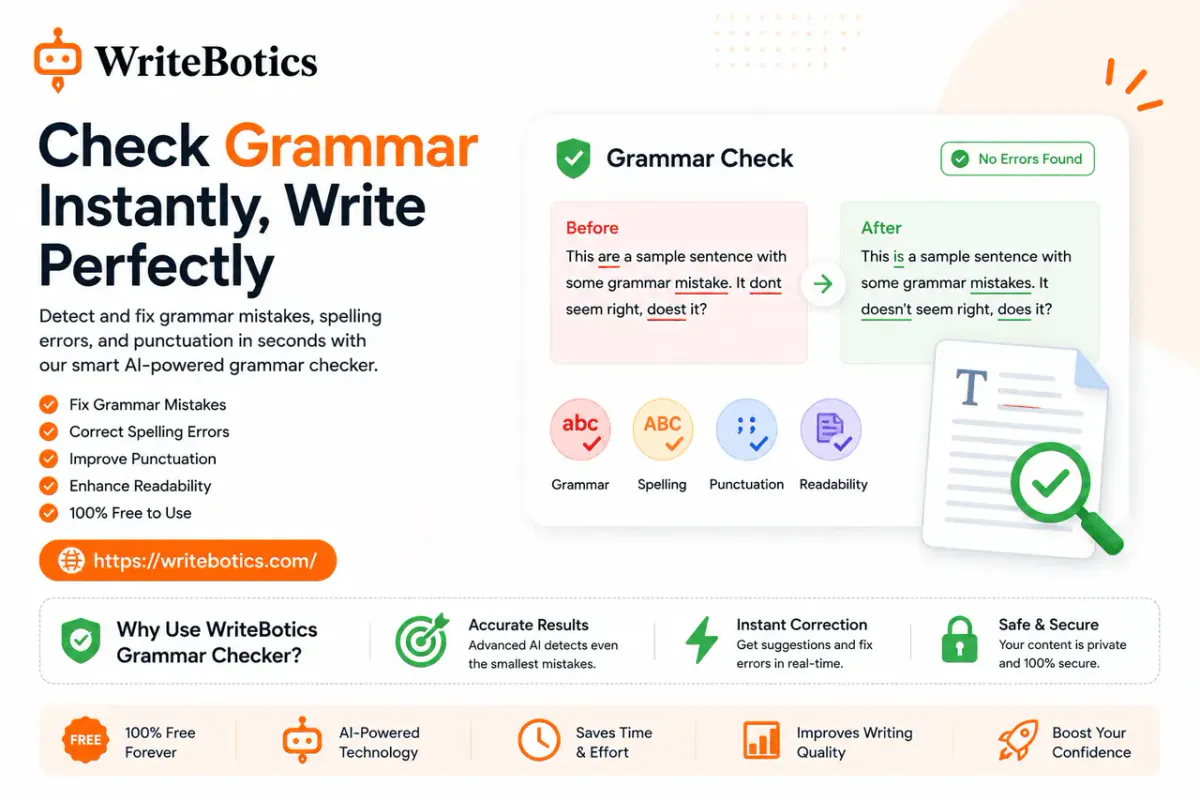
The takeaway: if "free" and "no signup" both matter to you, your realistic options are Google's built-in checker or a browser-based tool like the Grammar Checker that doesn't gate the basics behind an account.
A Simple Free Workflow: Docs + a Second-Pass Checker
You don't have to pick one or the other. The most effective free setup uses both, in this order:
- Write in Google Docs and let the built-in checker catch typos and obvious errors as you go — no extra effort required.
- Copy your finished draft into the Grammar Checker for a second pass that looks at clarity and phrasing, not just spelling and syntax.
- Paste the corrected version back into Docs.
Say you've written a 600-word cover letter. Docs will catch the misplaced apostrophe in "its" vs. "it's" and a missing comma. It won't tell you that your third paragraph repeats the same idea from your first one in slightly different words. That's exactly the kind of thing a second pass catches — and it takes maybe two extra minutes.
Is It Safe to Paste Google Docs Text Into a Free Online Checker?
Worth asking, and most articles on this topic skip it entirely. For everyday writing — emails, blog drafts, assignments — pasting text into a browser-based tool is standard practice and not something to worry about.
Where it's worth pausing is anything genuinely sensitive: unpublished research, a contract with client names in it, internal company documents. In those cases, check the tool's privacy policy before pasting anything in, or stick to Google Docs' built-in checker, which never sends your text anywhere else. It's a reasonable trade-off to keep in mind — not a reason to avoid free tools altogether, just something to be deliberate about.
Grammar Check Not Working in Google Docs? Common Fixes
If the underlines have stopped showing up, it's almost always one of these:
- The toggle got switched off. Go back to Tools > Spelling and grammar and confirm both suggestion options are checked.
- Wrong document language. If Docs thinks your document is in a different language than what you're actually writing in, grammar suggestions can disappear or misfire. Check File > Language.
- A browser extension is interfering. Other grammar or writing extensions installed in your browser can sometimes conflict with Docs' native checker. Try disabling other writing-related extensions one at a time to isolate the issue.
- You're offline. Some grammar suggestions require an active connection and won't appear if you're editing offline.
Nine times out of ten, it's the first one. People switch it off without realizing, usually by accident while dismissing a suggestion.
Checking Grammar in the Google Docs Mobile App
The mobile experience isn't identical to desktop. On the Android and iOS apps, spelling suggestions work the same way you'd expect from any mobile keyboard, but grammar suggestions are more limited and, on some devices, not available at all depending on your app version and language settings. If you're doing serious editing, desktop is still the more reliable option — treat mobile as fine for quick fixes on the go, not a full proofreading pass.
Frequently Asked Questions
Does Google Docs have a free grammar checker built in? Yes. It's on by default for most accounts, checking spelling and basic grammar as you type, with no installation or account setup beyond your existing Google account.
Why isn't Google Docs catching all my grammar mistakes?
Because it's built for clear-cut errors — spelling, basic syntax, obvious word misuse — not style, tone, or wordiness. For those, a second pass through a tool like the Grammar Checker fills the gap.
Do I need to install an add-on to check grammar in Google Docs?
No. The built-in checker works with zero installation. An add-on only makes sense if you specifically want features Docs doesn't have, like deeper style analysis.
Is it safe to copy my Google Docs text into an online grammar checker?
For everyday writing, yes. For anything confidential, check the tool's privacy policy first, or stick with Docs' native checker, which keeps your text local to the document.
Does Google Docs check grammar on mobile?
Partially. Spelling suggestions work well on the mobile app, but grammar suggestions are more limited than on desktop and vary by device and app version.
What's the fastest way to check an entire document at once?
Use Tools > Spelling and grammar > Spelling and grammar check to step through every flagged issue in the document in order, rather than scanning for underlines manually.